Single Row Test First: CSV Training Record Preflight for HR Admins

Import employee training records by downloading your platform’s vendor CSV template, populating it with matching identifiers, mapping each column to the correct destination field, then validating and testing before you commit to a full upload. Run a single-row test first, confirm you have admin or import permissions, and only then proceed to bulk import. Platforms like CertiCerts follow this exact pattern for batch certificate and record issuing.
TL;DR:
- Ensure your CSV file uses the platform’s official template with exact identifiers, correct header names, and UTF-8 encoding to prevent common formatting errors.
- Map CSV columns to destination fields by unique identifiers and validate enumeration values to avoid downstream import failures.
- Run small test batches and fix validation errors promptly to prevent larger data issues during full-scale imports.
- Restrict import permissions to system administrators and always retain a pre-import snapshot and confirmation report for compliance and recovery.
- Correct failed imports by addressing flagged errors and re-importing only the affected rows to avoid duplicates and ensure data accuracy.
Table of Contents
- Preflight Checklist Before You Touch the CSV
- Where to Get the CSV Template and How to Populate It
- How Do You Map CSV Columns to the Right Fields?
- Fixing Common Formatting Problems That Cause Import Failures
- Why the Validation and Test Step Matters Most
- Who Should Be Allowed to Import Training Records?
- How Do You Recover From a Failed Import?
- How CertiCerts Handles Bulk Training Record Imports
- What Admins Get Wrong About CSV Imports (And How to Fix It)
- How CertiCerts Simplifies CSV Imports and Bulk Certificate Issuing
- Vendor Docs Worth Bookmarking
- Sources
Preflight Checklist Before You Touch the CSV
Rushing straight into a spreadsheet is how most bad imports happen. Run through this before editing anything:
- Download the current vendor CSV template and archive a clean copy for reuse.
- Export and back up your existing training records before making any changes.
- Confirm your account has import or admin permissions for training data.
- Set your spreadsheet encoding to UTF-8 and dates to YYYY-MM-DD.
- Build a one-row test CSV and schedule a small batch test before the full run.
Skipping step three is the most common time-waster. Admins build a perfect file, only to discover their account lacks the role needed to run the import.
Where to Get the CSV Template and How to Populate It
Always start with your platform’s own template rather than a spreadsheet built from memory. Vendor templates carry the correct header names, data types, and example rows your system expects, and mismatched headers are one of the top reasons imports fail outright, according to Claromentis’s bulk import documentation.
A few habits keep the populated file clean:
- Match identifiers exactly. Username, email address, or course shortname must line up character-for-character with what already exists in the system.
- Watch Excel’s date auto-formatting. It silently converts “2026-03-01” into a regional date format unless you format the column as text first or re-enter dates as YYYY-MM-DD.
- Save as “CSV UTF-8 (Comma delimited)” when your platform supports it, since Microsoft’s own import guidance confirms Excel offers multiple CSV encoding options that are not interchangeable.
- Keep a single sample row saved separately. It becomes your test file later.
Many LMS import tools require specific header names like username, course_shortname, completed_on, and expires_on, and the header row must include these columns even when a value is intentionally left blank, per documentation on creating CSV files for learning records.
How Do You Map CSV Columns to the Right Fields?
Most import tools use a two-column mapping screen: your incoming CSV header sits on the left, the destination field sits on the right, and you connect them manually or accept an auto-match suggestion. Get this step wrong and every downstream record inherits the error.
A few rules make mapping far less error-prone:
- Map by unique identifier (email, username, or course ID) rather than display name, since two employees can share a name but never an employee ID.
- Treat every field marked with an asterisk as mandatory. A reliable four-step workflow built around download, populate, map, and validate treats these required-field markers as the point where most validation failures originate.
- Decide in advance whether missing optional fields should get a default value or stay blank, and apply that rule consistently across the file.
- Normalize enumerated values (pass/fail codes, grade scales, status labels) so your source data matches what the destination field accepts.
- Build a small lookup sheet when your source system’s values don’t match the destination system’s accepted list, then use it to bulk-correct the CSV before mapping.
Confirm the course IDs or shortnames referenced in your file already exist in the destination system. Missing destination objects are a frequent, avoidable cause of failed imports.
Fixing Common Formatting Problems That Cause Import Failures
Formatting issues cause more failed imports than bad data ever does. Excel is the usual culprit. Open a CSV, type a date, and Excel quietly reformats it to match your regional settings, breaking the YYYY-MM-DD standard most systems expect. Format the date column as text before entering values, or paste dates as text strings to stop the auto-conversion.
Encoding problems show up differently. A file saved in the wrong encoding will import names with garbled accent characters or reject the upload outright. Open the file in a plain text editor to check encoding, and re-save as CSV UTF-8 through Excel’s “Save As” dialog when needed, following Microsoft’s documented CSV encoding options.
Two smaller issues trip up admins constantly:
- Trailing empty columns from deleted spreadsheet columns can leave stray commas that confuse the parser.
- A delimiter mismatch (comma versus semicolon) will make an entire file unreadable to the importer.
Pro Tip: Run a find-and-replace pass on obvious formatting issues, like extra spaces or inconsistent date separators, before you ever open the mapping screen. Fixing five rows by hand is fine; fixing five hundred by hand is a Friday afternoon you won’t get back.
Why the Validation and Test Step Matters Most
Every reliable import tool includes a preview screen before final submission, and this is where you catch mistakes cheaply instead of expensively. Rows typically get flagged red for hard errors and yellow for warnings, a pattern Drata’s bulk import validation uses to stop submission until every red flag is resolved.
Work through validation in this order:
- Export the flagged error rows into a separate file so you’re not hunting through the full dataset.
- Fix the values causing the flags, referencing your lookup sheet for enumeration mismatches.
- Re-upload just the corrected rows and confirm they clear validation.
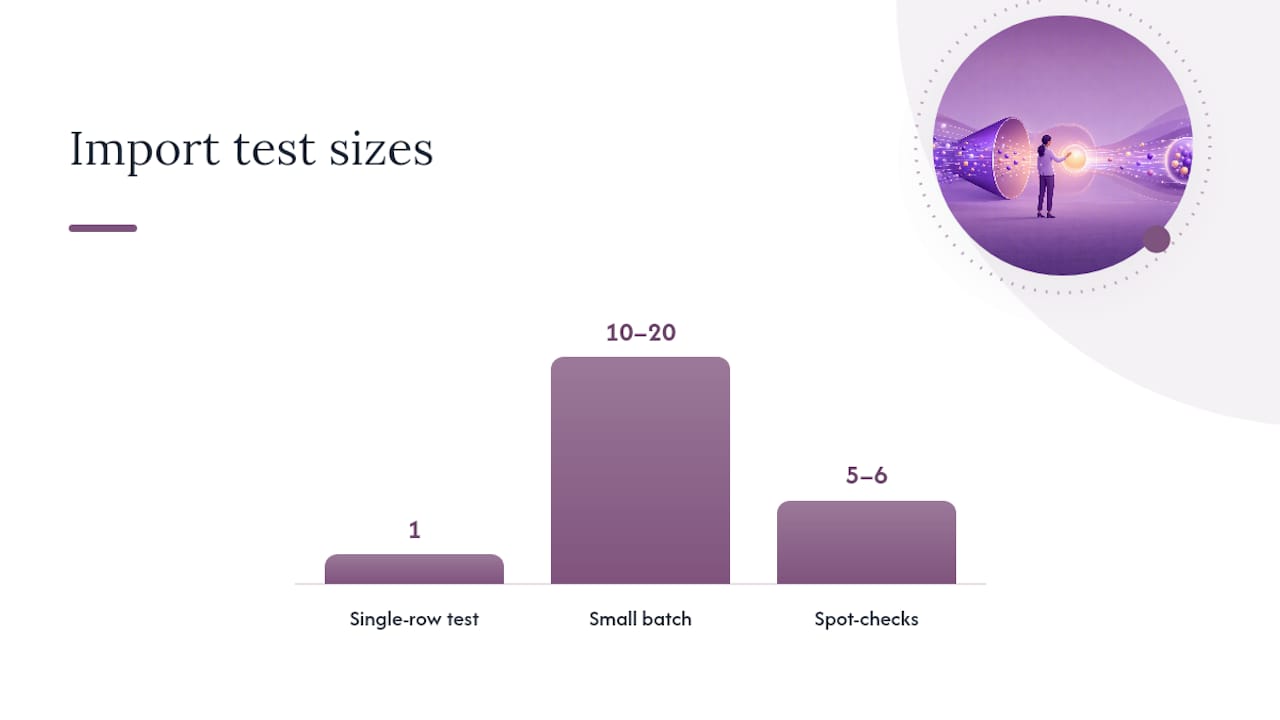
- Run a true single-row test import, confirming it against the exact single-record approach vendor documentation on learning record imports recommends before scaling up.
- Move to a small batch (10 to 20 records) before attempting the full file.
Once the full import runs, spot-check five or six employee records against the source file and save the import confirmation summary. That summary becomes your evidence trail if an auditor ever questions when a certification was recorded.
Who Should Be Allowed to Import Training Records?
Bulk import access should sit with Learning Managers or system Administrators only, not with every HR team member who touches training data. This isn’t bureaucracy for its own sake. A single mis-mapped column, run at scale by someone without oversight, can overwrite hundreds of accurate records in seconds, and permission restrictions exist specifically to protect against that.
Before any import:
- Export a full pre-import snapshot of current records and store it separately.
- Save the platform’s import confirmation report the moment the job completes.
- Loop in IT ahead of large imports so backups and scheduling don’t collide with other system maintenance.
- Retain both the snapshot and confirmation report for as long as your compliance obligations require.
How Do You Recover From a Failed Import?
A failed import is rarely catastrophic if you prepared correctly. Start by pulling the error report the system generated. It isolates exactly which rows failed and usually states why, whether that’s a bad date format, a missing course ID, or a required field left blank.

Correct only the flagged rows in your CSV, then re-run the import for that smaller subset rather than resubmitting the entire file. This matters more than it sounds: resubmitting a full file can create duplicate records for the rows that succeeded the first time.
Decide ahead of time whether a correction should void and replace an existing record or simply overwrite specific fields. Voiding preserves a visible history that a record was corrected, which auditors tend to prefer over silent overwrites. If your platform supports a staging environment, test corrected rows there before touching live data. And keep that original pre-import export handy. If a bulk correction goes sideways, restoring from a known-good snapshot is far faster than manually reconstructing hundreds of records by hand.
How CertiCerts Handles Bulk Training Record Imports
CertiCerts applies this same template, map, validate, and issue sequence to its bulk-issuing workflow. Admins import attendee lists for a training event, map fields to the platform’s certificate and wallet card data structure, and generate credentials in batch rather than one at a time.
Because CertiCerts runs as a local-first Windows application, imported data stays on your organization’s own machine rather than a third-party cloud server, and the QR verification embedded on each certificate works offline once issued. The compliance dashboard then surfaces expiring credentials and import summaries in one place, giving admins a record of what was issued, when, and to whom without digging through spreadsheet history.
What Admins Get Wrong About CSV Imports (And How to Fix It)
The biggest mistake I see isn’t a formatting error. It’s treating every import as a one-off event instead of maintaining a canonical master template under version control. Teams that keep one clean, dated template file avoid re-learning the same header quirks every quarter.
The second habit worth stealing: always run a single-row test, then a small batch, before touching the full file, and loop in IT ahead of large imports so nobody else is editing records mid-upload. Concurrency issues cause more mystery errors than bad CSVs ever do.
— James
How CertiCerts Simplifies CSV Imports and Bulk Certificate Issuing
Every step covered above, template prep, field mapping, validation, single-row testing, exists because manual training record management breaks down at scale. CertiCerts was built around that exact pain point rather than around it.

The platform supports attendee-list CSV imports mapped directly to batch certificate and wallet card generation, so a training event with 200 attendees produces 200 verified credentials without touching a single certificate template by hand. Each one carries offline QR verification, and the compliance dashboard tracks expiring credentials and import summaries automatically, giving you an audit trail without a separate spreadsheet system. If your organization is still managing certifications through folders and manual PDFs, see how CertiCerts handles bulk issuing and run a batch through the free trial to see your own attendee list turned into finished credentials.
Vendor Docs Worth Bookmarking
For platform-specific steps beyond this guide, consult Microsoft’s CSV import and export documentation, the Deputy bulk import help center, and CertiCerts’s own guides on certificate template design and training matrix workflows. For deeper mapping context, workit’s LMS documentation covers training matrix concepts from a platform-agnostic angle.
Sources
- Bulk import or bulk update training modules and training records — Deputy Help Centre
- Import or export text (.txt or .csv) files — Microsoft Support
- Creating a CSV File for Importing Learning Records | Help Centre
- Discover - Bulk Import Training Records